
Changing the pitch of a song on mobile is no longer a workaround—it’s a normal part of singing practice, karaoke prep, and content creation. Whether a song feels too high, too low, or just uncomfortable, adjusting the pitch on your phone can solve the problem instantly—if you use the right method.
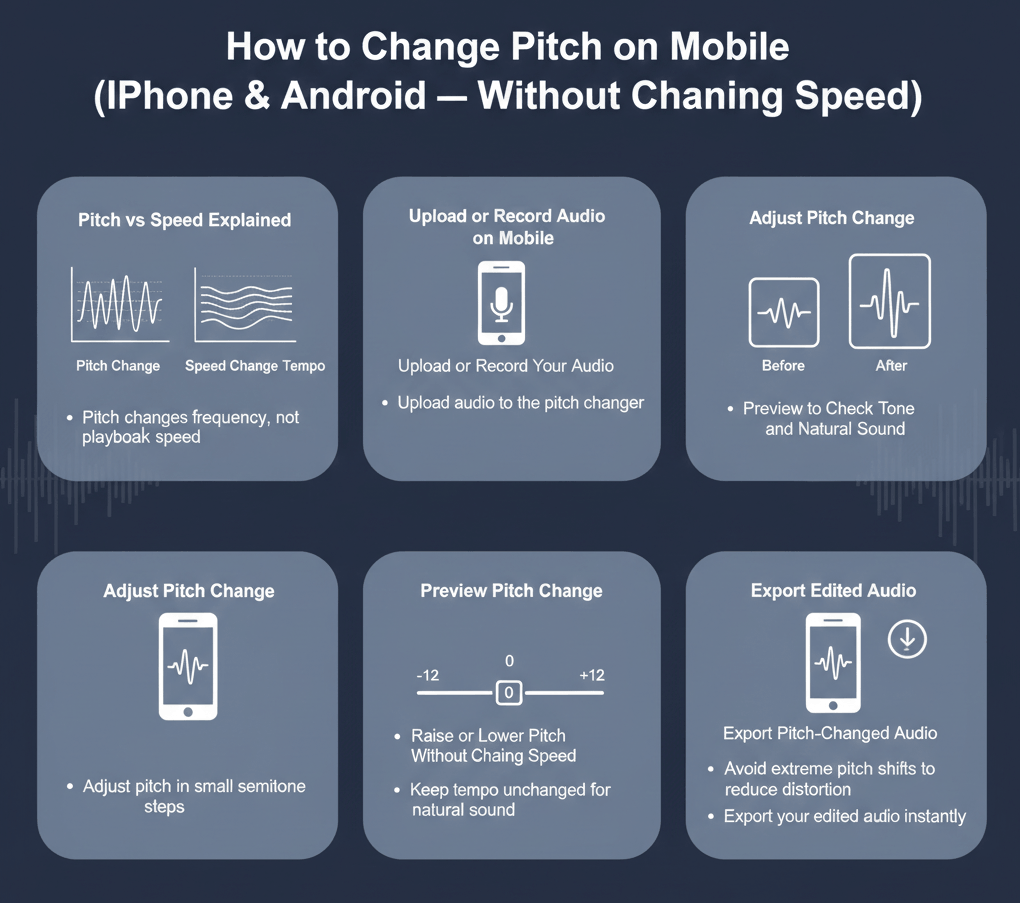
To change pitch on iPhone or Android without changing speed, use a pitch-shifter app, import your audio, adjust pitch in semitones, keep tempo locked, preview the result, and export. This raises or lowers pitch while preserving timing and rhythm.
This guide explains how to change pitch on mobile correctly, what tools work best on iPhone and Android, how many semitones to change, and how to avoid common quality problems.
On mobile browsers, a pitch tool lets you change pitch without installing an app.
What Does “Changing Pitch” Mean on Mobile?
Pitch refers to how high or low a sound is, determined by its frequency.
Changing pitch means raising or lowering that frequency without changing how fast the audio plays.
Changing pitch on mobile means adjusting the frequency of audio while keeping the original tempo and timing the same.
- For voice recordings on phones, a vocal tool works directly in the browser.
- When adjusting pitch in mobile videos, a video tool handles audio changes cleanly.
Pitch vs Tempo on Mobile (Critical to Understand)
Many mobile users accidentally change speed when they only want to change pitch.
- Pitch = how high or low the sound is
- Tempo = how fast the song plays
Modern mobile tools can separate the two—but only if you use the correct feature.
Clear explanation:
Pitch vs Tempo: What’s the Difference?
If the song sounds faster or slower after adjustment, the wrong method was used.
The Two Ways to Change Pitch on Mobile
There are two main approaches on phones. One is clearly better for most users.
Option 1: Use a Mobile Browser (Recommended)
Browser-based tools work directly on your phone—no app install, no setup.
Best for:
- Singing practice
- Karaoke tracks
- Quick key testing
- iPhone and Android users
They allow you to:
- Change pitch in semitones
- Keep tempo unchanged
- Download the adjusted file
This is the fastest and most reliable option for most mobile users.
Option 2: Use a Mobile App
Pitch-changer apps exist, but quality and controls vary widely.
Limitations of many apps:
- Limited semitone control
- Accidental tempo changes
- Ads or locked features
- Inconsistent audio quality
Apps can work for experimentation, but browser-based tools are usually more predictable for pitch accuracy.
How to Change Pitch on Mobile (Step-by-Step)
This workflow applies to iPhone and Android using a mobile browser.
- Open a mobile pitch-changer tool in your browser
- Upload your audio file (MP3, WAV, etc.)
- Choose a pitch adjustment in semitones
- Keep tempo unchanged
- Preview the result
- Download the adjusted file
That’s it—no installation required.
How Many Semitones Should You Change on Mobile?
Most pitch problems are solved with small adjustments.
Featured-snippet answer
On mobile, most pitch changes sound best within 1–3 semitones.
General guidance:
- −1 semitone → subtle comfort fix
- −2 to −3 semitones → most common and effective
- −4+ semitones → quality may degrade
For a structured decision guide:
How Many Semitones to Change Key?
Pitch Change vs Key Change on Mobile
On mobile tools, pitch change is often used to achieve a key change.
- Pitch change = frequency adjustment
- Key change = musical transposition
When pitch is changed by exact semitone steps, the musical key changes accordingly.
Clear explanation:
Key Change vs Pitch Change
For singers, what matters is the result: a key that feels comfortable and sounds natural.
Why Pitch Changes Can Sound Bad on Mobile
Pitch changes may sound unnatural when:
- The adjustment exceeds 3–4 semitones
- The audio contains layered vocals or heavy effects
- Low-quality algorithms are used
These are technical limits, not user mistakes. Staying within small semitone changes preserves quality best.
Mobile vs Desktop Pitch Changing
| Aspect | Mobile | Desktop |
|---|---|---|
| Convenience | Very high | Lower |
| Speed | Instant | Slower |
| Control depth | Moderate | High |
| Best use | Practice, karaoke | Production, editing |
For most singers, mobile is more than enough.
Frequently Asked Questions
Can I change pitch on mobile without changing speed?
Yes—if the tool supports pitch and tempo separately.
Do I need to install an app?
No. Browser-based tools work well on iPhone and Android.
Does mobile pitch changing reduce quality?
Small changes (1–3 semitones) preserve quality very well.
Is mobile pitch changing accurate?
Yes, for singing practice and key adjustment.
Final Takeaway
Changing pitch on mobile is simple and reliable when done correctly.
Best results come from:
- Using a browser-based pitch changer
- Adjusting by 1–3 semitones
- Keeping tempo unchanged
- Focusing on comfort, not extremes
For fast, flexible pitch adjustment anywhere, mobile tools are now one of the most practical options available.
- To get a quick overview, this simple guide explains how mobile pitch shifting is handled online.
- When you need a browser-based option, this easy tool lets you adjust pitch without altering speed.
- If your song feels out of range, this helpful tip shows how to bring it up cleanly.
- To better understand what’s happening, this clear explanation breaks down the difference.
- For vocal-only tweaks, this useful option keeps voices sounding natural.
- When working with video files, this practical solution lets you change audio directly.
- To double-check musical steps, this quick reference makes the math easier.