
GarageBand includes several features that affect pitch—but they serve different purposes. Many users accidentally change tempo, over-correct vocals, or use the wrong tool entirely, leading to unnatural results.
To change pitch in GarageBand, select the track, open Track Controls, adjust the Pitch slider or Transpose setting, preview the sound, and apply changes. This raises or lowers pitch without affecting tempo or timing.
This guide shows how to change pitch in GarageBand correctly, explains which tool to use (and which to avoid), and helps you achieve clean, natural-sounding pitch changes on Mac, iPhone, and iPad.
A free online pitch changer tool is ideal for fast edits without software.
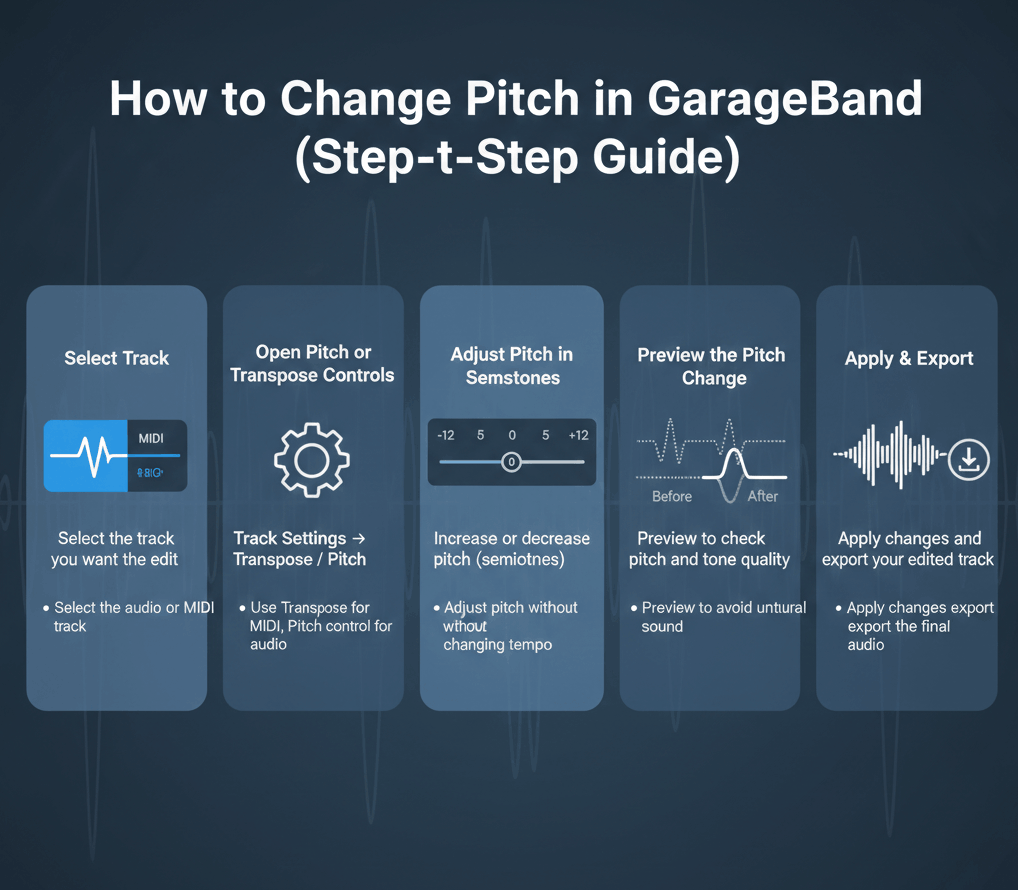
“Changing Pitch” in GarageBand
Pitch describes how high or low a sound is, determined by its frequency.
Changing pitch means raising or lowering that frequency without altering playback speed.
Changing pitch in GarageBand means adjusting the frequency of audio or MIDI notes while keeping the original tempo unchanged.
If you want a short refresher on pitch fundamentals: What Is Pitch in Music?
Pitch vs Tempo in GarageBand (Key Concept)
GarageBand allows pitch and tempo to be controlled independently, but only when the correct feature is used.
- Pitch = how high or low the sound is
- Tempo = how fast the audio plays
Using the wrong tool can unintentionally change both.
Clear breakdown:
Pitch vs Tempo: What’s the Difference?
GarageBand Tools That Affect Pitch (Use the Right One)
GarageBand has three pitch-related tools. Choosing the right one is critical.
| Tool | What It Actually Does | When to Use It |
|---|---|---|
| Transpose | Shifts pitch by semitones | Changing song key |
| Pitch Correction | Fixes tuning errors | Cleaning up vocals |
| Flex Pitch (Mac) | Manual note editing | Detailed vocal repair |
Important:
If your goal is to raise or lower a song’s key, use Transpose.
Do not use Pitch Correction for key changes—it does something else.
How to Change Pitch in GarageBand on Mac
Step 1: Select the track
Click the audio or MIDI track you want to adjust.
Step 2: Open Track Controls
Press B or click the Track Controls button.
Step 3: Use Transpose
Locate the Transpose slider and adjust it by ±1–3 semitones.
- Positive values raise pitch
- Negative values lower pitch
Step 4: Listen critically
Play the chorus or highest section, not just a single note.
- If tempo affects the sound, a tempo tool helps compare changes.
- For vocal-only testing, use a vocal tool
How to Change Pitch in GarageBand on iPhone or iPad
Step 1: Open your project
Tap the track you want to modify.
Step 2: Open Track Settings
Tap the Controls icon → Track Settings.
Step 3: Adjust Transpose
Move the Transpose control in small semitone steps.
This works best for small pitch changes.
How Many Semitones Should You Change?
Most pitch problems are solved with small adjustments.
In GarageBand, most pitch changes sound best within 1–3 semitones.
General guidance:
- −1 semitone → subtle comfort improvement
- −2 to −3 semitones → most common and effective
- −4+ semitones → audio quality may degrade
For a structured decision guide:
How Many Semitones to Change Key?
Pitch Change vs Key Change in GarageBand
GarageBand technically performs a pitch change, but musicians usually experience the result as a key change.
- Pitch change = frequency adjustment
- Key change = musical transposition
Changing pitch by exact semitone steps results in a key change—but understanding the difference avoids confusion when comparing tools.
Clear explanation:
Key Change vs Pitch Change
Why Pitch Changes Can Sound Unnatural in GarageBand
Pitch changes may sound artificial when:
- The shift exceeds 3–4 semitones
- Vocals include harmonies or strong effects
- Formants move outside natural vocal ranges
These are algorithm limits—not user mistakes.
When an Online Pitch Changer Is the Better Option
GarageBand is powerful, but not always the fastest or cleanest solution.
Our onlinepitchchanger may be better if you want to:
- Test multiple keys quickly
- Avoid complex interfaces
- Change pitch on mobile
- Preserve vocal tone with minimal setup
Frequently Asked Questions
Can GarageBand change pitch without changing speed?
Yes—when using Transpose correctly.
Is Pitch Correction the same as changing pitch?
No. Pitch correction fixes tuning; it does not change the song key.
Is GarageBand good for vocals?
Yes, for small pitch changes. Larger shifts may sound unnatural.
Can I undo pitch changes?
Yes. Use Undo or reset Transpose to zero.
Final Takeaway
GarageBand can change pitch cleanly if you use the correct tool.
Best results come from:
- Using Transpose, not Pitch Correction
- Adjusting by 1–3 semitones
- Evaluating the hardest section of the song
For fast experimentation or repeated key testing, an online pitch changer may be more efficient—but GarageBand remains a solid option for controlled pitch adjustments.