
Audacity is one of the most widely used free audio editors, and it includes a built-in way to change pitch without changing speed. When used correctly, it works well for small adjustments—especially for singing practice, key changes, and backing tracks.
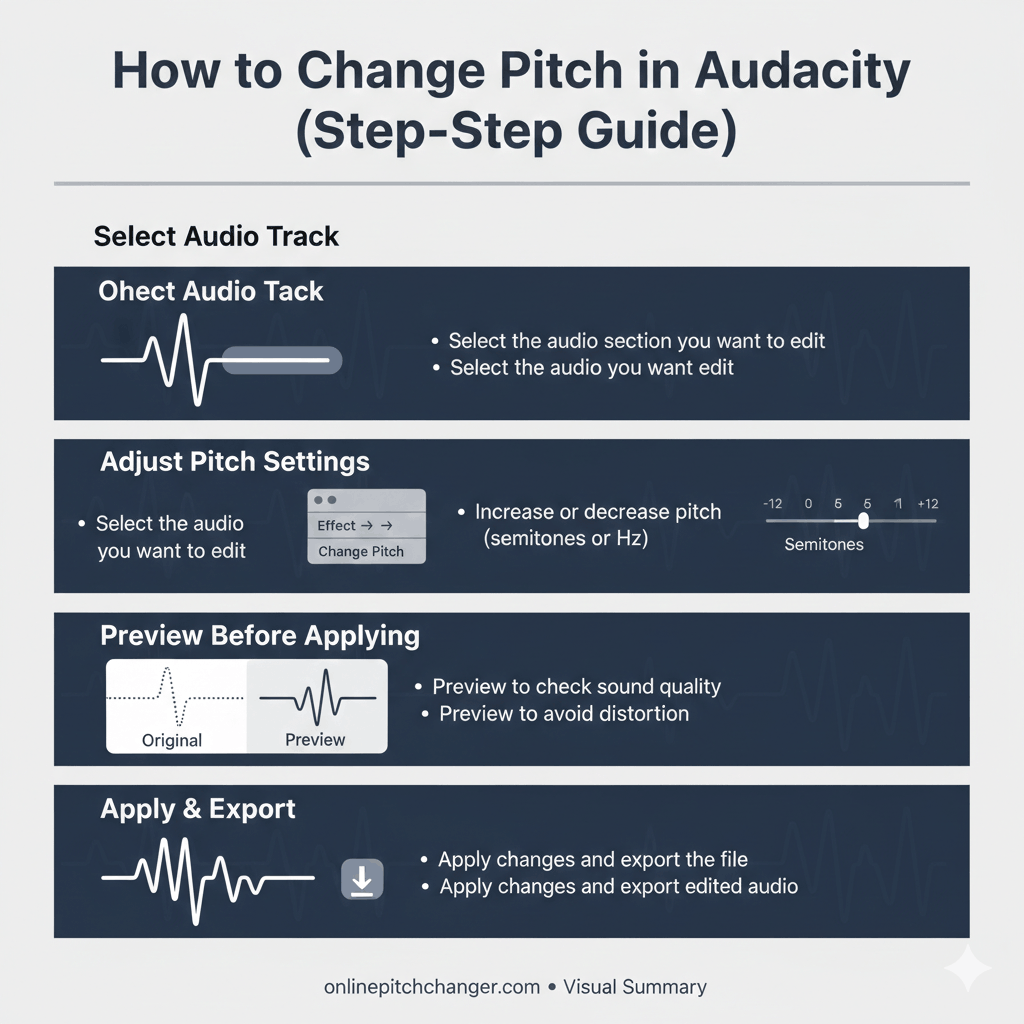
To change pitch in Audacity, select your audio, go to Effects → Change Pitch, choose the number of semitones to raise or lower, preview the result, then click Apply. This adjusts pitch without changing tempo or track speed.
This guide explains how to change pitch in Audacity step by step, what settings matter, how many semitones to use, and where Audacity’s limitations begin.
Many users choose a fast pitch changer online for convenience.
What “Changing Pitch” Means in Audacity
Pitch describes how high or low a sound is, determined by its frequency.
Changing pitch means shifting those frequencies without changing the timing of the audio.
Changing pitch in Audacity means raising or lowering the frequency of audio while keeping the original tempo and timing unchanged.
If you want a short refresher on pitch itself:
What Is Pitch in Music?
Change Pitch vs Change Speed (Difference)
Audacity offers multiple effects that sound similar but behave very differently.
- Change Pitch → changes pitch without changing speed
- Change Speed → changes pitch and tempo together
- Change Tempo → changes speed without changing pitch
If you want to make a song easier to sing or change its key, you must use Change Pitch, not Change Speed.
Clear explanation:
Pitch vs Tempo: What’s the Difference?
Step-by-Step: How to Change Pitch in Audacity
Step 1: Import your audio
- Open Audacity
- Go to File → Import → Audio
- Select your audio file (MP3, WAV, etc.)
Step 2: Select the audio
- Click inside the track
- Press Ctrl + A (Windows) or Cmd + A (Mac) to select all
Step 3: Open the Change Pitch effect
- Go to Effect → Pitch and Tempo → Change Pitch
Step 4: Choose how to change pitch
Audacity lets you change pitch in three ways:
- Semitones (recommended)
- Percentage
- From one musical key to another
For singing and music, semitones are the most predictable and musically accurate option.
Step 5: Preview before applying
- Click Preview
- Listen carefully to the chorus or hardest section
- Adjust semitones if needed
Step 6: Apply and export
- Click OK to apply
- Go to File → Export and save your new file
- If timing matters while adjusting pitch, a tempo tool helps preview results.
- For voice-only comparisons, a vocal tool makes quick checks easier.
How Many Semitones Should You Change?
Most pitch problems are solved with small adjustments.
Featured-snippet answer
In Audacity, most singers change pitch by 1–3 semitones for natural-sounding results.
General guidance:
- −1 semitone → very subtle comfort fix
- −2 to −3 semitones → most common and effective
- −4+ semitones → quality may degrade noticeably
For a decision framework:
How Many Semitones to Change Key?
Pitch Change vs Key Change in Audacity
Audacity technically performs a pitch change, but most users are aiming for a key change.
- Pitch change = frequency adjustment
- Key change = musical transposition
When pitch is changed by exact semitone steps, the result is effectively a key change—but the distinction matters when comparing tools and sound quality.
Clear explanation:
Key Change vs Pitch Change
Why Pitch Changes Can Sound Bad in Audacity
Audacity works best for small pitch shifts. Quality issues can appear when:
- Pitch is changed more than 3–4 semitones
- Vocals have strong harmonies or reverb
- Formants shift unnaturally (voices sound thin, dull, or artificial)
This is a limitation of traditional pitch-shifting algorithms, not a mistake on your part.
When an Online Pitch Changer Is the Better Choice
Audacity is powerful, but it can be slow for quick testing.
An onlinepitchchanger may be better if you want to:
- Test multiple keys quickly
- Avoid installing software
- Change pitch on mobile
- Preserve sound quality with less setup
Frequently Asked Questions
Can Audacity change pitch without changing speed?
Yes. Use Effect → Change Pitch, not Change Speed.
Is Audacity good for vocal pitch changes?
Yes for small adjustments. Larger changes may sound unnatural.
Does Audacity use AI?
No. Audacity uses traditional digital signal processing.
Can I undo a pitch change?
Yes. Use Edit → Undo immediately after applying the effect.
Final Takeaway
Audacity can change pitch effectively when used correctly.
Best results come from:
- Using Change Pitch, not Change Speed
- Adjusting by 1–3 semitones
- Previewing carefully before exporting
For fast experimentation or repeated key testing, an online pitch changer may be more efficient—but Audacity remains a solid option for controlled edits.